Guide
How to catalogue your video game collection
What to record for each game and console, how to handle regions, condition and accessories, and how to keep a game catalogue accurate as your shelf grows.
A games collection grows quietly: a few titles from a car-boot sale, a console from a relative’s loft, a bundle online. Before long you’re buying a game you already own. A catalogue fixes that — and makes insurance, selling or simply showing off much easier.
This guide covers what to record, how to organise it and how to keep it up to date.
Decide what counts as “an item”
The first decision shapes everything else:
- Games, one entry per copy. If you own two copies of the same game (say, one boxed and one loose), make two entries.
- Consoles, one entry each, including different models of the same console.
- Accessories — controllers, memory cards, light guns, cables — linked to the console they belong to.
Keeping copies separate matters because the copy’s condition is often what you care about most.
What to record for each game
Start with the essentials and add detail only if you’ll use it:
| Field | Why it matters |
|---|---|
| Title (as on the box) | Avoids confusion between similarly named releases |
| Platform | The same title often exists on several systems |
| Year | Helps tell re-releases and sequels apart |
| Region | PAL, NTSC-U, NTSC-J and others can differ in box, content and compatibility |
| Condition | Loose, boxed, complete in box, sealed… |
| Owned or wanted | Lets one list double as your wishlist |
| Played / finished | Turns the catalogue into a backlog too |
| Price paid | Your own record of what you spent |
| Photo | Proves condition and makes the list easy to browse |
Agree your condition terms
Use the same few words every time, so the catalogue means something a year later. A common set:
- Loose — the cartridge or disc only.
- Boxed — with the box, but something is missing (manual, inserts).
- Complete in box — box, manual and inserts present.
- Sealed — never opened.
Write down your own definitions somewhere, especially for borderline cases like a reproduction manual.
Photograph as you go
Photos are the most useful part of a catalogue and the most tedious to add later. Take one of the front cover and, for shelf browsing, one of the spine, the moment you catalogue a game. Good light and a plain background are enough.
Organise the physical shelf to match
The catalogue is easier to trust if the shelf follows the same logic:
- One shelf or section per console.
- Alphabetical by title within a console — or by release year if you prefer history.
- Wanted games as a list, not as gaps on the shelf.
Keep it current
- Catalogue a new game the day it arrives, before it goes on the shelf.
- Do a quick shelf check every few months: count the spines against the catalogue.
- When a game leaves (sold, traded, given away), remove it rather than leaving it marked as owned.
Spreadsheet, database app or collection app?
- A spreadsheet works for small collections; photos and per-console views get awkward as it grows.
- Dedicated game database apps often add barcode scanning, box art and price data, usually for a subscription.
- A general collection app keeps games alongside other collections with less setup.
See the comparison of collection apps for the trade-offs, with details from each app’s listing.
Doing it in Collectors Den
Collectors Den covers this workflow on iPhone and Mac:
- Photograph the cover before typing: the app reads the title on the device and suggests matches from a catalogue of more than 51,000 games. If the title is part of the artwork, read the spine instead.
- Record condition, region, played/finished, owned or wanted and price paid for each copy.
- Consoles each get their own shelf as soon as their first game is added, and accessories are linked to their console.
- Make the full list of a console’s games and tick off the ones you own.
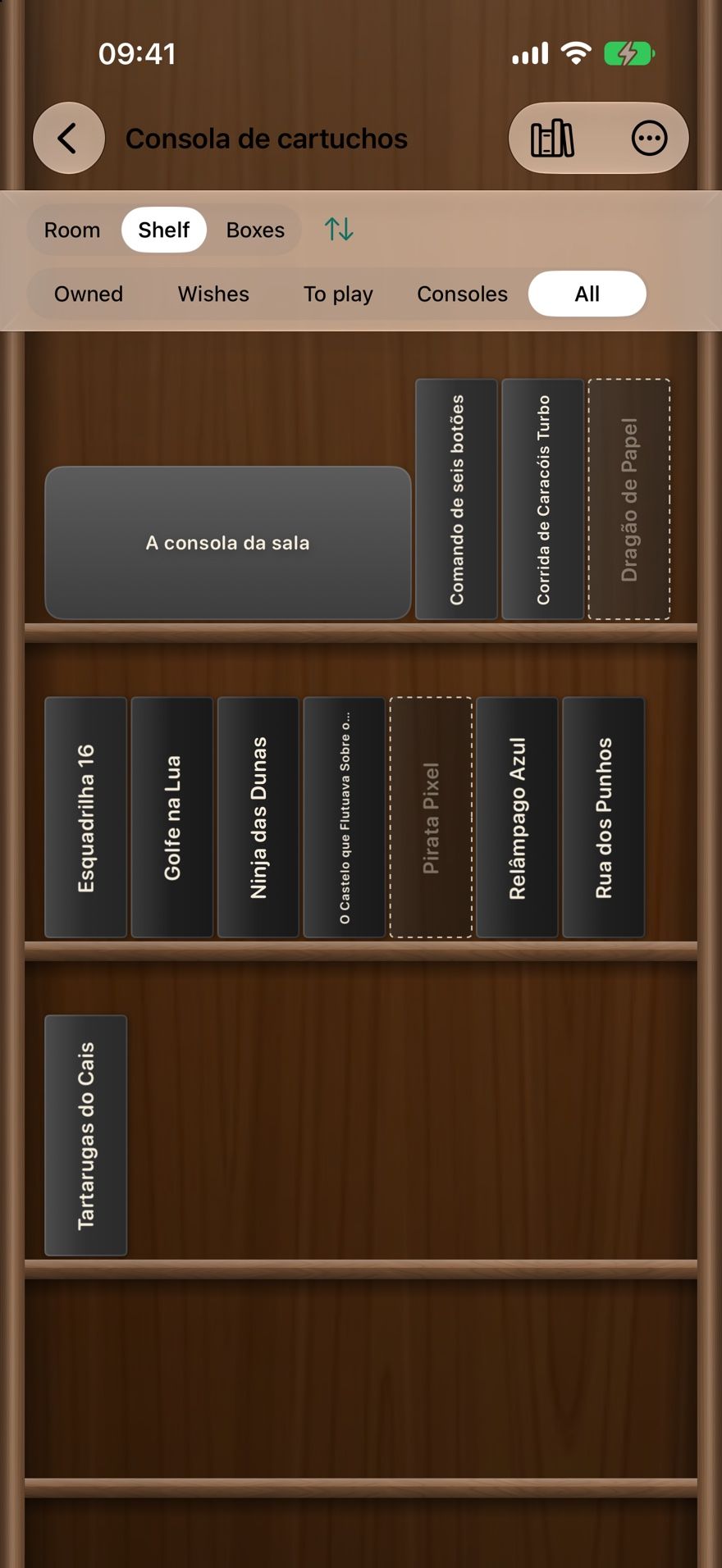
- Browse games standing on a shelf by their spines, by console or all together.
- Synced through your own iCloud; a backup file and a 30-day trash protect the catalogue.
What it doesn’t do: no barcode scanning, no downloaded box art (covers and console pictures are your own photos) and no market prices. It runs on iPhone and Mac. It’s free, with no ads, no subscriptions and no account.
A quick checklist
- One entry per copy; consoles and accessories as their own entries.
- Title as on the box, platform, year and region.
- Consistent condition terms.
- Cover and spine photos on day one.
- Shelf organised the same way as the catalogue.
- A shelf check every few months.