Guide
How to organise a sticker album collection on your iPhone
Set up sticker albums on iPhone so they stay accurate — naming, sections, quick marking, the camera, family sharing and backups that survive a new phone.
Your iPhone is already in your pocket when you open packs, when a friend shows you their spares and when you pass a newsagent. That makes it the best place to keep your sticker albums — as long as the setup is tidy enough that you trust it.
This guide is about the setup and habits that keep several albums organised on an iPhone. For the pack-opening and swapping routine itself, see how to track missing and duplicate football stickers.
1. Decide what one “album” is
Before you create anything, decide how you’ll split things:
- One album per physical album. If you’re collecting the same series twice (say, one for you and one for a child), make two albums — mixing them makes the missing list meaningless.
- Name albums the way you’d say them out loud, including the year or edition: “Football 2026”, not “Album 2”. You’ll thank yourself when there are five of them.
- Archive finished albums instead of deleting them; they’re a record of what you completed.
2. Get the numbering right once
Most of the work of a tracker is the checklist. Get it right on day one:
- If the album numbers stickers 1 to N, any app that generates a numbered list will do it in seconds.
- If it uses codes (team abbreviations, letters for special sections), import a list rather than typing it. A CSV file with one sticker per row is the most portable format.
- Add sections (teams, chapters, intro pages). Progress per section is the most useful view in a long album.
- Sticker names are optional. They help when someone asks “do you need the goalkeeper?”, but numbers are what you’ll compare.
3. Make marking fast
You’ll mark stickers dozens of times per pack session, so speed matters more than features:
- Open packs in one sitting, sort them into number order, then mark them in one pass.
- Use the camera when your app offers it: reading the number from the back of a sticker is faster than typing and avoids misreads of similar-looking numbers.
- Mark before you stick. If you’re interrupted, the list is still right.
4. Use the iPhone’s own tools
A few iPhone features make an album app much more useful:
- Widgets on the Home Screen show progress without opening the app.
- Spotlight can find an album or sticker from the search field if the app supports it.
- Shortcuts can open an album or run an app action from a button or Siri.
- iCloud keeps the same data on your iPhone and Mac, and survives a phone upgrade.
5. Share with the family — carefully
Collecting is often a family activity. If an app lets several people mark the same album:
- Share only the album you’re filling together, not everything.
- Agree on who sticks — two people marking the same sticker at once is how duplicates “disappear”.
- For children, keep swaps among people you know. Apps with open chat or public matching need more supervision.
6. Back up before it matters
Albums take months. Make sure you can’t lose one:
- Check that sync is actually on (sign in to iCloud if your app uses it).
- Export a backup file now and then and keep it somewhere other than the phone.
- Prefer apps where deleting isn’t instant — a trash you can restore from saves real tears.
How this looks in Collectors Den
Collectors Den follows this approach on iPhone and Mac:
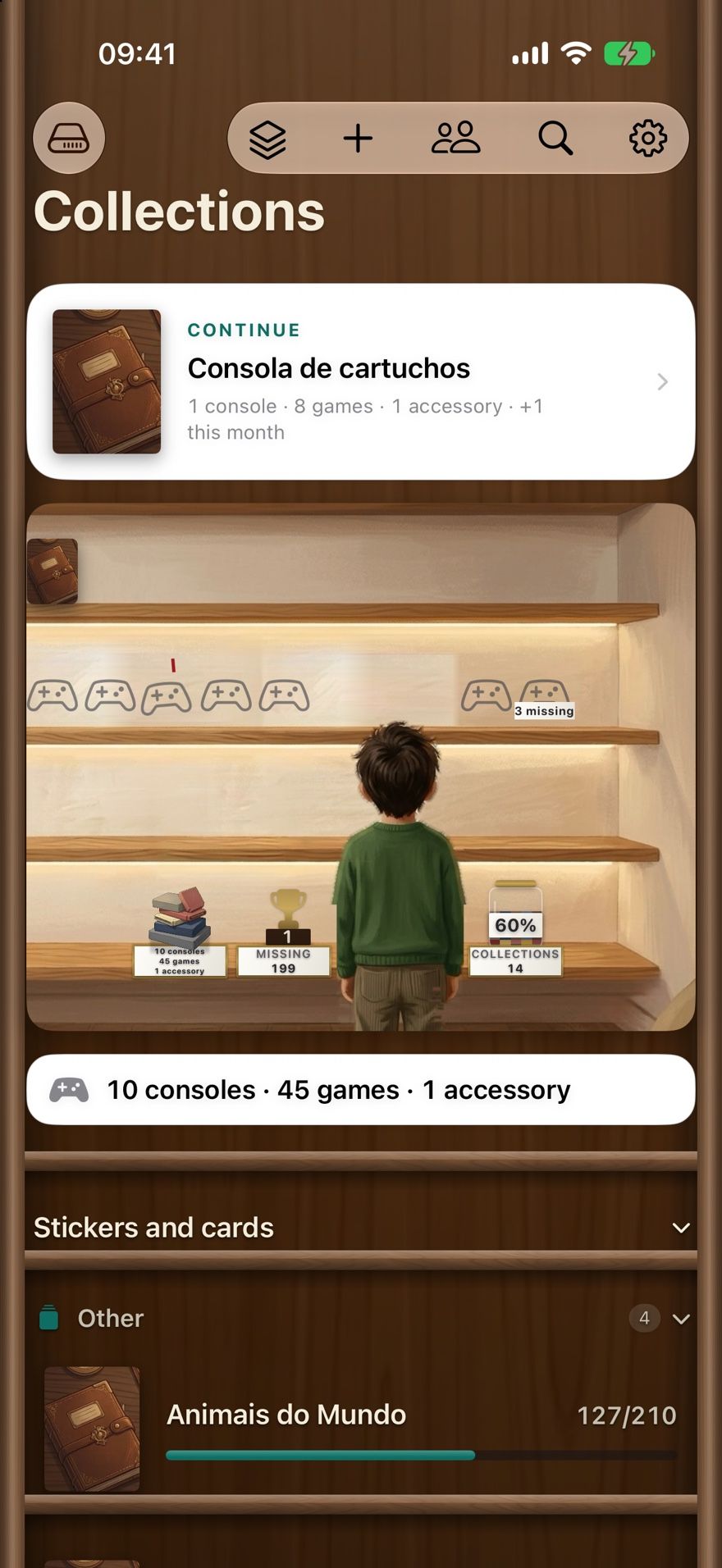
- Albums stand on a shelf, each counting what you have, what’s missing and the percentage done, with progress per section.
- Create an album by pages and stickers per page, or import a CSV (
number,name,section/team,owned,duplicates). - Scan the number on the back of a sticker with the camera; the text is read on the device.
- Widget on iPhone, progress in the Mac menu bar, Spotlight search and actions in Shortcuts.
- iCloud sync through your own account — no sign-up. Without iCloud, the app works locally.
- Share one album by inviting a person by their Apple Account email or phone; each invitation code is for that person only and lasts a week.
- A backup file of everything, and a 30-day trash for deleted collections.
It’s free, with no ads and no subscriptions. It doesn’t include ready-made checklists for specific published albums, and it runs on iPhone and Mac only.
Summary
- One app album per physical album, named clearly.
- Get the numbering and sections right once — import if the album uses codes.
- Mark in one pass, before sticking, using the camera when you can.
- Let widgets, Spotlight and iCloud do the remembering.
- Share only what you fill together.
- Keep a backup.